Game overview
Simplode Suite - Magnifier Utilities
These Magnifier Utilities provide quick ways to magnify certain portions of the screen, which will automatically unmagnify as you move your mouse cursor outside of the magnified area. Zoom in on a specific app or on a selected area.
- Last tracked players
- 0
- All-time peak
- Unavailable
- 24-hour change
- Unavailable
Delayed observation · last tracked . Values marked unavailable are not estimated.
About this game Read the full description
These Magnifier Utilities provide quick ways to magnify certain portions of the screen, which will automatically unmagnify as you move your mouse cursor outside of the magnified area. Zoom in on a specific app or on a selected area.
This product is available natively in English, but it has automated translations for most major languages.
Contents: Magnification Menu (🔍⧂), Mouse Zoom In (🖱️🔍+), Mouse Zoom Out (🖱️🔍-), OS Magnifier (🔍❖), Magnify App (🗔🔍), Rescale App (🗔 Rescale), Magnify Area (🔍⇲), Demagnify (🔍❌)
Settings:
Settings:
Settings:
This product is available natively in English, but it has automated translations for most major languages.
Contents: Magnification Menu (🔍⧂), Mouse Zoom In (🖱️🔍+), Mouse Zoom Out (🖱️🔍-), OS Magnifier (🔍❖), Magnify App (🗔🔍), Rescale App (🗔 Rescale), Magnify Area (🔍⇲), Demagnify (🔍❌)
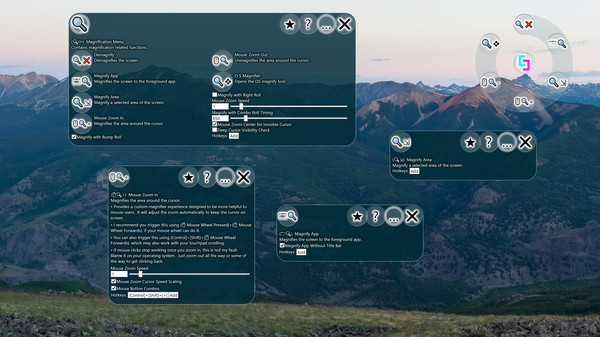
Magnification Menu (🔍⧂)
Contains magnification related functions.Settings:
- Magnify with Bump Roll (Default: True)
When you press the middle mouse button and then roll the mouse wheel at the same time or shortly after, the magnifier will zoom in or out on your cursor depending on which direction you moved the wheel. - Magnify with Right Roll (Default: False)
When you press the right mouse button and then roll the mouse wheel at the same time or shortly after, the magnifier will zoom in or out on your cursor depending on which direction you moved the wheel. - Mouse Zoom Speed (Default: 1)
Multiplies the amount of zoom when using the Mouse Zoom In and Out features. - Magnify with Combo Roll Timing (Default: 650)
This is the number of milliseconds allowed after hitting the middle mouse button for activating the zoom feature by mouse wheel rolling. A value of 0 will mean that the middle mouse button must still be pressed at the time of the roll, which can be a bit tricky. - Mouse Zoom Center for Invisible Cursor (Default: True)
If enabled, cursor zoom/magnification will center on the middle of the active application when cursor is not visible. Otherwise it will still zoom in on the cursor, which might not be very useful considering you don't know where it is. - Deep Cursor Visibility Check (Default: False)
When checking whether or not a cursor is visible, sometimes a deeper check is required. The deep cursor check has some performance implications, though likely not noticeable. Keep this off if you aren't noticing any problems with how the tool reacts to invisible cursors.
Mouse Zoom In (🖱️🔍+)
Magnifies the area around the cursor.- Provides a custom magnifier experience designed to be more helpful to mouse users. It will adjust the zoom automatically to keep the cursor on screen.
- I recommend you trigger this using {🖱️ Mouse Wheel Pressed}+{🖱️ Mouse Wheel Forwards}, if your mouse wheel can do it.
- You can also trigger this using [Control]+[Shift]+{🖱️ Mouse Wheel Forwards}, which may also work with your touchpad scrolling.
- If mouse clicks stop working once you zoom in, this is not my fault. Blame it on your operating system. Just zoom out all the way or some of the way to get clicking back.
- Mouse Zoom Speed (Default: 1)
Multiplies the amount of zoom when using the Mouse Zoom In and Out features. - Mouse Zoom Cursor Speed Scaling (Default: True)
When using Mouse Zoom In and Out features, adjust the speed of the mouse to match the current zoom level. As you zoom in closer, your cursor will slow down to try to match its original speed but at the new zoomed in screen size. - Mouse Button Combos (Default: True)
When enabled, mouse button combos are allowed. Mouse button combos can possibly cause delays in processing lesser used mouse buttons (buttons other than left click). When disabled, features that rely on mouse button combos will stop working. If you toggle off and on individual settings that require combo mouse buttons to work, this setting might get toggled back on automatically.
Mouse Zoom Out (🖱️🔍-)
Unmagnifies the area around the cursor.- Provides a custom magnifier experience designed to be more helpful to mouse users. It will adjust the zoom automatically to keep the cursor on screen.
- I recommend you trigger this using {🖱️ Mouse Wheel Pressed}+{🖱️ Mouse Wheel Backwards}, if your mouse wheel can do it.
- You can also trigger this using [Control]+[Shift]+{🖱️ Mouse Wheel Backwards}, which may also work with your touchpad scrolling.
- Mouse Zoom Speed (Default: 1)
Multiplies the amount of zoom when using the Mouse Zoom In and Out features. - Mouse Zoom Cursor Speed Scaling (Default: True)
When using Mouse Zoom In and Out features, adjust the speed of the mouse to match the current zoom level. As you zoom in closer, your cursor will slow down to try to match its original speed but at the new zoomed in screen size. - Mouse Button Combos (Default: True)
When enabled, mouse button combos are allowed. Mouse button combos can possibly cause delays in processing lesser used mouse buttons (buttons other than left click). When disabled, features that rely on mouse button combos will stop working. If you toggle off and on individual settings that require combo mouse buttons to work, this setting might get toggled back on automatically.
OS Magnifier (🔍❖)
Opens the OS magnify tool.- For touch screen users I currently recommend the default magnify tool that comes with windows.
- If you are using a mouse you should try Mouse Zoom In (🖱️🔍+) and Mouse Zoom Out (🖱️🔍-).
- This will run whichever magnify tool with the name magnify.exe is first in your system paths.
Magnify App (🗔🔍)
Magnifies the screen to the foreground app.Settings:
- Magnify App Without Title Bar (Default: True)
If enabled, tries to zoom in to only the client area of an app when activating Magnify App. - Magnify to Current Screen (Default: True)
If enabled, Magnify Area and Magnify App will attempt to frame the target area into the screen that the cursor is on.
Rescale App (🗔 Rescale)
Magnify Area (🔍⇲)
Magnify a selected area of the screen.Settings:
- Magnify to Current Screen (Default: True)
If enabled, Magnify Area and Magnify App will attempt to frame the target area into the screen that the cursor is on.
Demagnify (🔍❌)
Demagnifies the screen.Media gallery 1 screenshots · 1 videos

Screenshots
Videos
Magnifier Utilitiies
Player activity
Concurrent players over the last 48 hours.
Loading player history?
System requirements Windows
Windows
Minimum
Minimum:- OS: Windows 10
Game details Languages, features & support
- Publisher
- Simplode LLC
- Brazilian rating
- l
- Features
- Downloadable Content, Steam Achievements
- Languages
- English, French, Italian, German, Spanish - Spain, Arabic, Bulgarian, Czech, Danish, Dutch, Finnish, Greek, Hungarian, Japanese, Korean, Norwegian, Polish, Portuguese - Portugal, Portuguese - Brazil, Romanian, Russian, Simplified Chinese, Spanish - Latin America, Swedish, Thai, Traditional Chinese, Turkish, Ukrainian, Vietnamese
- Website
- Official website ↗
- Support
- Support site ↗
More analysis Activity patterns, updates & developer tools
Game Insights
Buy Verdict
Watch — $3.99.
Decent deal at 0% off, but might drop further. Watch for better opportunities.
▲
~41 days until next sale
Value Score
Great Value — 100th percentile.
Price-to-player ratio ranks in the 100th percentile.
▲
Market pricing tier
Genre Benchmarks
Value Ratio
Top 0%
Developer Analytics
Loading competitors...
Frequently Asked Questions
Is Simplode Suite - Magnifier Utilities worth buying right now?
Watch — $3.99. Decent deal at 0% off, but might drop further. Watch for better opportunities.
When does Simplode Suite - Magnifier Utilities go on sale?
Decent deal at 0% off, but might drop further. Watch for better opportunities.
Is Simplode Suite - Magnifier Utilities free to play?
Simplode Suite - Magnifier Utilities costs $3.99 on Steam.
What genre is Simplode Suite - Magnifier Utilities?
Simplode Suite - Magnifier Utilities is a Casual, Utilities, Video Production game.
Who developed Simplode Suite - Magnifier Utilities?
Simplode Suite - Magnifier Utilities was developed by Simplode LLC and published by Simplode LLC.
What platforms does Simplode Suite - Magnifier Utilities support?
Available on Steam for Windows.