Game overview
Simplode Suite - Basic Power Management
Basic Power Management provides easy access to basic power and session management features. It also includes some slightly more advanced features such as turning off your monitors or putting your computer to sleep or hibernate while ignoring many common wake triggers.
- Last tracked players
- 0
- All-time peak
- Unavailable
- 24-hour change
- Unavailable
Delayed observation · last tracked . Values marked unavailable are not estimated.
About this game Read the full description
Basic Power Management provides easy access to basic power and session management features. It also includes some slightly more advanced features such as turning off your monitors or putting your computer to sleep or hibernate while ignoring many common wake triggers.
This product is available natively in English, but it has automated translations for most major languages.
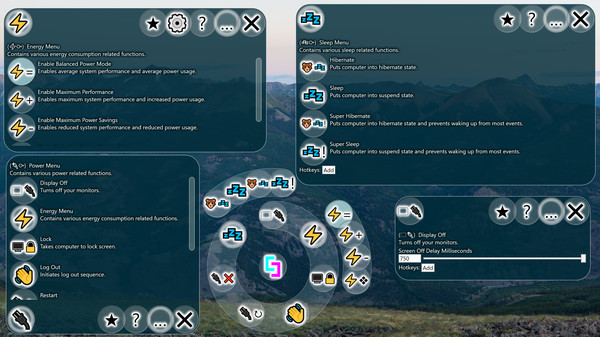
Contents: Enable Balanced Power Mode (⚡=), Enable Maximum Performance (⚡+), Enable Maximum Power Savings (⚡-), Open Operating System Energy Menu (⚡❖), Lock (🖥🔒), Log Out (👋), Restart (🔌↻), Shut Down (🔌❌), Hibernate (🐻💤), Super Hibernate (🐻💤!), Sleep (💤), Super Sleep (💤!), Display Off (🖵🔌)
Settings:
Settings:
Settings:
Settings:
Settings:
Settings:
Settings:
This product is available natively in English, but it has automated translations for most major languages.
Contents: Enable Balanced Power Mode (⚡=), Enable Maximum Performance (⚡+), Enable Maximum Power Savings (⚡-), Open Operating System Energy Menu (⚡❖), Lock (🖥🔒), Log Out (👋), Restart (🔌↻), Shut Down (🔌❌), Hibernate (🐻💤), Super Hibernate (🐻💤!), Sleep (💤), Super Sleep (💤!), Display Off (🖵🔌)
Enable Balanced Power Mode (⚡=)
Enables average system performance and average power usage.Settings:
- Energy Balanced (Default: False)
If enabled, sets your computer's energy setting to the default setting for balanced energy savings. Usually this setting will allow the processor to slow down and save energy during low load, but also reach max speed during high load. This power setting will likely have other side effects, such as changing sleep settings and monitor timeout settings, which you can check out in the operating system's energy menu. - Lock Energy Setting (Default: False)
On my computer and possibly yours also, some program or operating system service keeps switching my energy settings against my wishes. This setting will switch it back automatically.
Enable Maximum Performance (⚡+)
Enables maximum system performance and increased power usage.Settings:
- Energy Performance (Default: False)
If enabled, sets your computer's energy setting to the default setting for maximum performance. Usually this setting will suggest that the processor run at 100% speed all of the time. In my experience, it will still use reduced energy under reduced loads, but is very aggressive at anticipating load to avoid noticeable speed reductions. This power setting will likely have other side effects, such as changing sleep settings and monitor timeout settings, which you can check out in the operating system's energy menu. - Lock Energy Setting (Default: False)
On my computer and possibly yours also, some program or operating system service keeps switching my energy settings against my wishes. This setting will switch it back automatically.
Enable Maximum Power Savings (⚡-)
Enables reduced system performance and reduced power usage.Settings:
- Energy Max Savings (Default: False)
If enabled, sets your computer's energy setting to the default setting for maximum energy savings. Usually this setting will limit the maximum speed of the processor, so your computer should feel slower while this is enabled. On the upside, it can increase battery life, reduce energy costs, and put less stress on the processor. Also, some computers have inadequate cooling solutions for their processors, which may result in thermal throttling. Preemptively slowing down the processor can avoid this and actually feel smoother. This power setting will likely have other side effects, such as changing sleep settings and monitor timeout settings, which you can check out in the operating system's energy menu. - Lock Energy Setting (Default: False)
On my computer and possibly yours also, some program or operating system service keeps switching my energy settings against my wishes. This setting will switch it back automatically.
Open Operating System Energy Menu (⚡❖)
Opens the operating system's energy menu.Lock (🖥🔒)
Takes computer to lock screen.Log Out (👋)
Initiates log out sequence.Restart (🔌↻)
Initiates system restart while indicating that open applications should reopen afterwards.Settings:
- Attempt to Restart Apps (Default: False)
The operating system has rudimentary support for restarting apps during a reboot. If enabled, restarting through the tool will use this method.
Shut Down (🔌❌)
Initiates system shut down.Settings:
- Hybrid Shut Down (Default: True)
If enabled when using the tool to shut down your system, the system will do extra work to speed up the next system start time. If disabled, the shutdown speed may be improved and the next start up may be slower.
Hibernate (🐻💤)
Puts computer into hibernate state.Super Hibernate (🐻💤!)
Puts computer into hibernate state and prevents waking up from most events.Settings:
- Super Hibernate Modify All Power Schemes (Default: True)
If enabled, Super Hibernate will overwrite the wake timers setting in every power scheme to disable all wake timers just before activating and then reenable them after.
Sleep (💤)
Puts computer into suspend state.Super Sleep (💤!)
Puts computer into suspend state and prevents waking up from most events.- After being woken up in the middle of the night many times by the hum of my computer's fans, this feature became a must have. Unfortunately, it can still wake up from some things anyways.
- Super Sleep Modify All Power Schemes (Default: True)
If enabled, Super Sleep will overwrite the wake timers setting in every power scheme to disable all wake timers just before activating and then reenable them after.
Display Off (🖵🔌)
Turns off your monitors.Settings:
- Screen Off Delay Milliseconds (Default: 750)
Keyboard presses and mouse movements can cause the screen to turn back on. This delay allows you to trigger the Screen Off function and then clear your hands before the monitors will go off.
Media gallery 1 screenshots · 0 videos
Screenshots
Player activity
Concurrent players over the last 48 hours.
Loading player history?
System requirements Windows
Windows
Minimum
Minimum:- OS: Windows 10
Game details Languages, features & support
- Publisher
- Simplode LLC
- Brazilian rating
- l
- Features
- Downloadable Content
- Languages
- English, French, Italian, German, Spanish - Spain, Arabic, Bulgarian, Czech, Danish, Dutch, Finnish, Greek, Hungarian, Japanese, Korean, Norwegian, Polish, Portuguese - Portugal, Portuguese - Brazil, Romanian, Russian, Simplified Chinese, Spanish - Latin America, Swedish, Thai, Traditional Chinese, Turkish, Ukrainian, Vietnamese
- Website
- Official website ↗
- Support
- Support site ↗
More analysis Activity patterns, updates & developer tools
Game Insights
Buy Verdict
Watch — $0.99.
Decent deal at 0% off, but might drop further. Watch for better opportunities.
▲
~41 days until next sale
Value Score
Great Value — 100th percentile.
Price-to-player ratio ranks in the 100th percentile.
▲
Market pricing tier
Genre Benchmarks
Value Ratio
Top 0%
Developer Analytics
Loading competitors...
Frequently Asked Questions
Is Simplode Suite - Basic Power Management worth buying right now?
Watch — $0.99. Decent deal at 0% off, but might drop further. Watch for better opportunities.
When does Simplode Suite - Basic Power Management go on sale?
Decent deal at 0% off, but might drop further. Watch for better opportunities.
Is Simplode Suite - Basic Power Management free to play?
Simplode Suite - Basic Power Management costs $0.99 on Steam.
What genre is Simplode Suite - Basic Power Management?
Simplode Suite - Basic Power Management is a Casual, Utilities game.
Who developed Simplode Suite - Basic Power Management?
Simplode Suite - Basic Power Management was developed by Simplode LLC and published by Simplode LLC.
What platforms does Simplode Suite - Basic Power Management support?
Available on Steam for Windows.