
Voice2Action
Voice2Action - Steam Analytics & Details
Voice2Action maintains a green-rated player base.
Voice2Action player count and price summary
- Current players
- 0
- All-time peak
- 1
- 24-hour player change
- 0%
- Current US price
- $5.35
Player count observed . Values marked unavailable are not estimated.
Media gallery 5 screenshots · 2 videos
Screenshots

Videos

Usage of Voice2Action

Voice2Action Trailer
All-Time Peak
Estimated Owners
Game Insights
Player Health
Stable player base with low churn risk.
Genre Benchmarks
Activity Heatmap
0 players · 1 samples
0 players · 1 samples
0 players · 1 samples
No samples
0 players · 1 samples
0 players · 1 samples
No samples
0 players · 2 samples
No samples
0 players · 1 samples
0 players · 1 samples
No samples
0 players · 1 samples
0 players · 1 samples
0 players · 1 samples
No samples
No samples
0 players · 2 samples
No samples
0 players · 1 samples
0 players · 1 samples
No samples
0 players · 1 samples
0 players · 1 samples
0 players · 1 samples
No samples
0 players · 1 samples
0 players · 1 samples
No samples
0 players · 2 samples
No samples
No samples
0 players · 2 samples
No samples
0 players · 1 samples
0 players · 1 samples
0 players · 1 samples
No samples
0 players · 1 samples
0 players · 1 samples
No samples
No samples
0 players · 2 samples
No samples
No samples
0 players · 2 samples
No samples
0 players · 1 samples
0 players · 1 samples
No samples
0 players · 1 samples
0 players · 1 samples
0 players · 1 samples
No samples
0 players · 1 samples
0 players · 1 samples
No samples
0 players · 2 samples
No samples
0 players · 1 samples
0 players · 1 samples
No samples
0 players · 1 samples
0 players · 1 samples
No samples
0 players · 1 samples
No samples
0 players · 1 samples
0 players · 1 samples
No samples
0 players · 1 samples
0 players · 1 samples
No samples
No samples
0 players · 2 samples
No samples
0 players · 1 samples
0 players · 1 samples
No samples
0 players · 1 samples
0 players · 1 samples
0 players · 1 samples
No samples
0 players · 1 samples
0 players · 1 samples
No samples
0 players · 2 samples
No samples
No samples
0 players · 1 samples
0 players · 1 samples
No samples
No samples
0 players · 1 samples
0 players · 1 samples
No samples
0 players · 1 samples
0 players · 1 samples
No samples
0 players · 1 samples
0 players · 1 samples
No samples
0 players · 1 samples
0 players · 1 samples
0 players · 1 samples
No samples
0 players · 1 samples
0 players · 1 samples
No samples
No samples
0 players · 2 samples
No samples
No samples
0 players · 1 samples
0 players · 1 samples
No samples
No samples
0 players · 2 samples
No samples
No samples
0 players · 1 samples
0 players · 1 samples
No samples
0 players · 1 samples
0 players · 1 samples
No samples
0 players · 1 samples
0 players · 1 samples
No samples
0 players · 1 samples
0 players · 1 samples
No samples
0 players · 1 samples
0 players · 1 samples
No samples
No samples
0 players · 2 samples
No samples
No samples
0 players · 1 samples
0 players · 1 samples
No samples
0 players · 1 samples
No samples
0 players · 1 samples
No samples
No samples
0 players · 1 samples
No samples
0 players · 1 samples
0 players · 1 samples
No samples
0 players · 1 samples
0 players · 1 samples
0 players · 1 samples
No samples
0 players · 1 samples
0 players · 1 samples
No samples
0 players · 2 samples
0 players · 2 samples
No samples
No samples
0 players · 2 samples
No samples
0 players · 1 samples
0 players · 1 samples
No samples
Latest News
Voice2Action 0.03 Beta
📝 UpdateVoice2Action v0.02 Beta - Changelog
📝 UpdatePrice History
No Recent Price History
Price history data will appear here once more pricing information becomes available.
System Requirements
- Requires a 64-bit processor and operating system
- OS: Windows 10
- Processor: Intel Core i3 or equivalent
- Memory: 4 GB RAM
- Graphics: Integrated graphics (Intel HD or equivalent)
- Storage: 1 GB available space
- Sound Card: Microphone required
- Requires a 64-bit processor and operating system
Additional Information
*languages with full audio support
Additional Information
Developer Analytics
Loading competitors...
About This Game
Control your games with your voice. Voice2Action turns spoken commands into keyboard shortcuts, letting you trigger actions, combos, and macros hands-free.
Detailed Description
Voice2Action is a voice-powered control tool designed for gamers who want to play smarter, faster, and hands-free. With Voice2Action, your spoken words become real in-game actions. Whether you want to trigger abilities, execute combos, or manage complex shortcuts, everything can be done with a simple voice command.
Key Features
Map voice commands to any keyboard shortcut.
Create custom macros for complex actions.
Switch weapons, open menus, or execute skills without lifting a finger.
Adjustable recognition sensitivity for different environments.
Works offline with built-in speech recognition, or online with AI-enhanced accuracy. (AI mode requires an active internet connection.)
Perfect for accessibility: allow more people to enjoy games through voice input.
Voice2Action gives players a new way to interact with their favorite titles—making gaming more immersive, responsive, and inclusive.
How To Use?
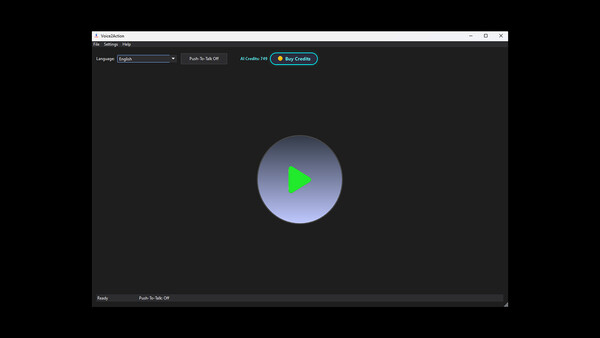
Voice2Action uses the microphone defined in Windows, so a microphone is required.
If a microphone is available and you don’t want to use AI mode, you can simply press Start to begin listening.
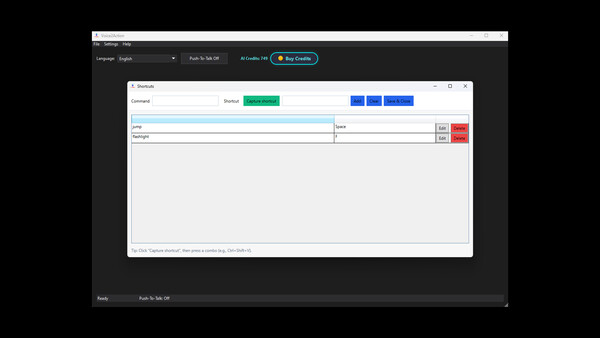
Before that, you should add new shortcuts from Settings → Shortcuts.
Enter the word or phrase you want to say.
Click on Capture Shortcut and press either a single key or a combination of keys.
Then click Add and finally Save & Close.
After that, you can press Start and your shortcut will be active.
Currently, hold-to-press functionality is not available, but it will be added later.
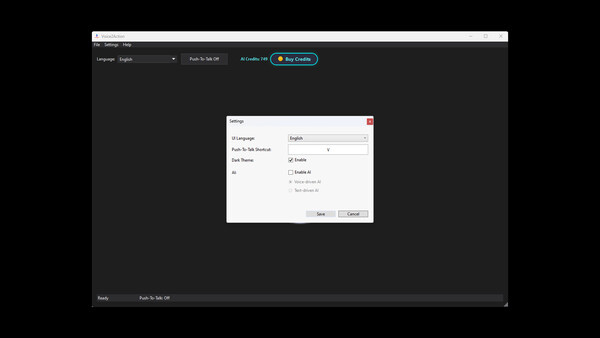
From Settings → General, you can also set your Push-To-Talk key.
In the main window, you can choose the language you want to speak in, and you can toggle Push-To-Talk on or off.
Finally, if you encounter any bugs or issues, please report them to us.